
Assemble in 3D from real materials
Choose parts, materials, shapes, and finishes, and see metal reflections, wood grain, and see-through sapphire change in 3D. Each material answers with its own short sound and haptic.
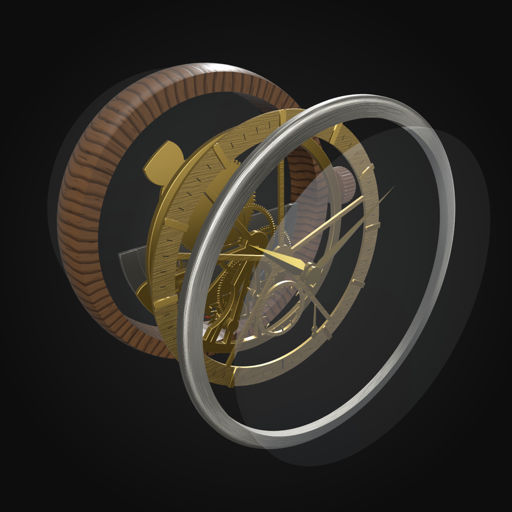 ChronoCraft

iPhone and Apple Watch
ChronoCraft lets you design a mechanical watch by choosing the case, bezel, dial, hands, movement, rotor, crystal, and strap from materials such as titanium, wood, sapphire, carbon, and ceramic, and assembling them in 3D. Take your watch apart to see how it works, then wear it on Apple Watch.
Choose parts, materials, shapes, and finishes, and see metal reflections, wood grain, and see-through sapphire change in 3D. Each material answers with its own short sound and haptic.
Use a slider to separate the watch into layers, and watch the balance wheel, escapement, gear train, and rotor move to the sound of ticking.
Show your design with the current time in the Watch app, and use it every day as a complication or as an image for the Photos face.
Designs sync between your devices through your own iCloud. Available in English and Japanese, with no ads and no account.
For questions, bug reports, or feedback, write to info@kamkam.me.
For step-by-step instructions, see the Guide.
Syncing requires both devices to be signed in to iCloud with the same Apple Account, and iCloud to be enabled for ChronoCraft under your Apple Account's iCloud settings in the Settings app. When iCloud isn't in use, My Designs shows "Saved only on this iPhone". Changes made offline are synced when you're back online.
Make sure your iPhone and Apple Watch are paired and ChronoCraft is installed on the watch. In My Designs, touch and hold a design and choose "Show on Apple Watch". While the Watch app is open, or just after you close it, the design arrives within a few seconds to about 30 seconds. Otherwise it appears the next time you open the Watch app.
Apps can't create Apple Watch faces themselves (a watchOS rule). Instead, you can place ChronoCraft as a complication on your watch face, or use "Save for Photos Face" and set the image on the Photos face.
Sounds don't play in Silent Mode. Also check that sound is turned on in the app's Settings. The movement sound in "See it in motion" plays after you turn it on with the button on the screen. On Apple Watch, the movement sound plays only while you touch and hold the watch face (choose the long-press action in the iPhone app's Settings).
On Apple Watch, set haptics to "Prominent" under Sounds & Haptics in the Settings app.
None. See the Privacy Policy.